Authentication
The ROIC.ai add-on authenticates using your API key. Copy it below and paste it into the add-on settings.
Your API Key
Sign in to see your API key.
Requirements
- A ROIC.ai account on any plan, including the free tier
- The ROIC.ai add-on installed in Google Sheets
Don't have an account yet? Create one for free.
Entering Your API Key
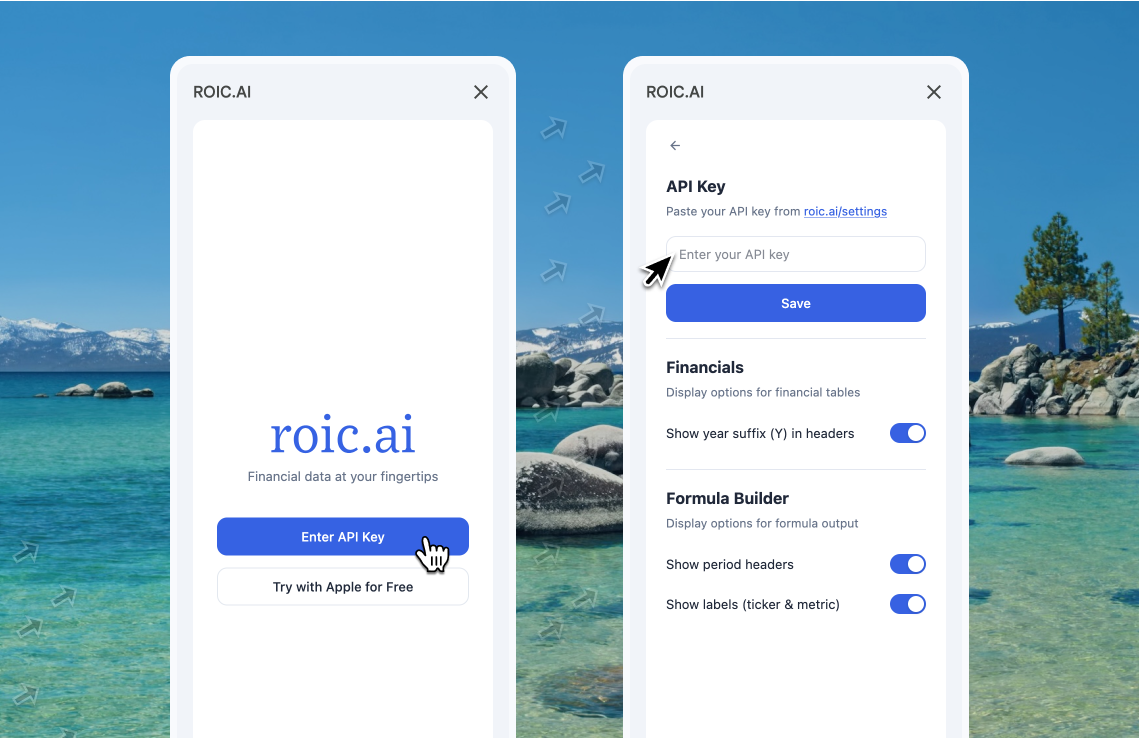
- Open the ROIC.ai add-on panel in your spreadsheet
- Click Enter API Key on the welcome screen
- Paste your API key into the API Key field
- Click Save
You can also reach this screen at any time by clicking the gear icon in the top-right corner of the add-on panel.
The add-on will verify your key and confirm your plan. You only need to do this once, and your key is saved locally.
API Key Security
- Your API key is stored locally on your device, not shared with other users of the spreadsheet
- Never share your API key publicly or commit it to version control
- If you suspect your key has been compromised, generate a new one from your account settings
- Each account has one API key — regenerating it invalidates the previous one
Plans & Rate Limits
Every plan, including the free tier, can use the add-on for all tickers. The free tier is capped at 5 requests/minute and 2 years of history; paid plans raise both.
Troubleshooting
| Issue | Solution |
|---|---|
| "Invalid API key" error | Double-check you copied the full key using the copy button above |
| "Rate limit exceeded" | You hit your plan's per-minute limit; wait a moment or upgrade for a higher limit |
| Key not saving | Make sure you click Save after pasting your key |
Next Steps
- Install the add-on in Google Sheets
- Auto-insert financial data tables
- Build custom formulas